WordPress is constantly updated as is Artisteer, which is a great program I use regularly to design WordPress websites. It is also a great program to design Joomla, Drupal and even static websites.

Most websites have their logo and/or header clickable to the home page. Unfortunately this is not a default process using Artisteer.
I’ve written about this before. But things change with each new update. So here is a simple code to make your header a clickable link to your home page:
In the sidebar, under Appearance / Editor / Header, look for:
<div class=”art-header”>
Replace this code with:
<div class=”art-header”onclick=”location.href=’http://www.yourdomainname.com/’;” style=”cursor: pointer;”>
And you’re done. Simple and easy.
Keep in mind that if you update or change your theme, this code will disappear and you will have to do it all over again.
Maybe this function will become a part of Artisteer or WordPress in a future update, I hope.
For more information check out:
MobileMe Account SetupI was excited to learn that Apple TV includes MobileMe. I clicked on the menu and was asked to “Add a MobileMe Account”. The way to enter text using the Apple TV remote is tedious, at best. You use a click wheel and scan through the letters onscreen. It’s the same way with Verizon Fios TV, which is also a pain.
I attempted to enter my MobileMe account but was given a message saying it did not exist. After some research I learned that maybe if I changed my MobileMe password, Apple TV would recognize my account. I did this and received the same results.
Out of frustration I called MobileMe support and learned that I had to have photos in the MobileMe gallery in order for it to work. I uploaded some photos and indeed it did work. Over the years I have found Apple tech support to be very helpful.
Photos Only for Apple TV and MobileMeApparently MobileMe on Apple TV is only for photos. You do not get access to your calendar, e-mails or any other content. This was disappointing. I wish I knew that from the beginning. It would have saved me a lot of trouble setting it up.
Overall I have been very pleased with Apple TV and especially Air Play. I can easily play audio from my iMac, MacBook as well as my iPhone and iPad through my Panasonic TV and speakers. Unfortunately it does not work with Sirius radio yet. I look forward to more functionality in the future.
Having just written about Appigo Sync version 1.2.0 I feel I must also talk a bit about today’s update to version 1.2.1.
This new update occurred just a day or so after the previous update. This time I had no problems with duplicate content or the inability to sync. Everything worked fine.
Now that the iPhone update is optimized for iOS4, it remains open unless you close it in the multi-task bar. Because of this, it does not automatically sync after initially opening unless you manually press the sync button.
For $19.99 per year, Appigo is offering Todo Online “Over-the-Air-Cloud-Sync”. What this does is sync your todos, projects, checklists, alerts, etc. with an online cloud service. This means you do not have to sync your Todo app with your computer and Appigo Sync. So you can sync your iPhone, iPad, iPod Touch and iCal with the online service, no matter where you are, and even view your todos on any computer. And it’s always up to date.
Of course, if you have daily access to your “base” computer with your iThings, and you’re the only one using your iStuff, I’m not sure what the benefit is over the free Appigo Sync software, other than having a (hopefully) reliable backup.
What is not clear yet, is if this new Todo Online service will sync up with the new iCal MobileMe when it comes out of beta. This is where iCal content is only stored online and not on your computer. We shall see.
Appigo Sync was updated to version 1.2.0. After syncing with the update all my ToDos were doubled. Yes, that’s right. Every item on every list had a duplicate version in the Inbox.
After that neither my iPhone nor my iPad connected to Appigo Sync. I got “Synchronization Error: Check Settings”.
Previously ToDo stopped syncing with iCal when I tried the MobileMe beta update. This was because the iCal beta on MobileMe takes all your calendar events and todos off your computer and stores it on “the cloud”.
iCal todos do not sync with either their iPad or iPhone. And the todos on iCal desktop do not match the todos on the iCal MobileMe account.
Another frustration is, if you just want to use the todos in iCal you will find it very tedious to update. Instead of clicking on your todo item date and seeing a pop up calender to move the item to a new date, you have to manually enter the day, date and year as separate items. Go figure. If only Apple created an easy way to update their todo items and sync them with MobileMe and all iProducts we wouldn’t need a Todo App.
As far as I know, Appigo’s “Todo” App is the only app that syncs with iCal. Here’s how I fixed the problem:
Make sure you back up your iCal. You do not want to lose all your data by accident.
Go to the Appigo Sync Preferences. Click on the section that says “Devices”. This is where you’ll find your iPad and iPhone listed.
Click on either iPhone or iPad, depending on what you have connected. Then click remove. I removed my iPad. Then went into “Settings”, then “Synchronization, then “Services”. I hit “Validate”. On my iMac the Appigo Sync Preferences panel listed the iPad as “Pending”. I was able to get a new sync code. I entered it and was then able to sync.
The iPhone was more complicated. The above procedure did not work. I ended up having to delete the Todo App from the iPhone. I then connected the iPhone to iTunes on my iMac. I checked the ToDo app on iTunes and resynced the phone. Then I opened the Todo App. After re-registering, I connected the device as stated above and now it works.
Unfortunately I still had to carefully delete all the duplicated items. I do not look forward to future updates, especially when the new MobileMe calender comes out of beta.
For more details check “How do I sync Todo with iCal”.
Today I finally decided to update my iCal to the new MobileMe Calendar. The reason I did this was because there was a detailed description from Appigo on how to do it. Unfortunately, what happened was that I lost all the detailed descriptions on all my Todos in iCal. They just appear as empty. Plus any changes on iCal’s todo list no longer sync with Appigo’s Todo on the iPad and iPhone. They also do not sync with Todo Online ($19.99 per year). I am waiting to hear back from Appigo on how to fix this issue. Hopefully I will have an answer soon.
Still no word from Appigo. So I called MobileMe and asked how I may be able to get my data back. They basically told me I was out of luck. Also iCal and MobileMe do not sync Todo items. They are working on this for a future update. I think this should have been a no-brainer from the start, but that’s just me.
I remembered I had saved a copy of my iCal calendars when I first had problems with the MobileMe beta calendar. I reloaded this into my MobileMe iCal account. Happily I got all my todo items and notes back. Plus, unfortunately, everything else on my iCal. Lots of duplicated items. So I diligently went through my entire calendar and deleted duplicate items.
Then I decided to try syncing up my revised iCal with my AppigoSync Todo Online account. Somehow this caused all my todo items to completely disappear from iCal on my computer. So, frustrated, I reapplied my summer backup calendars to my iCal and again synced with Appigo. Once again all my todos disappeared from iCal, plus all my appointments were duplicated again.
Next thing I did was to set AppigoSync on my iMac to manual so that it would no longer sync with Todo online. And what about Todo Online? Well, I had three or more copies of all my Todos. Some were in their proper lists, but without the notes and info. I had several copies of each item in the “Inbox” category. One copy of each Todo item had the deleted notes. The others did not.
So my original list of 500 plus todos were now over 1500. Some with notes, some without. Some in the right category. Some not.
Now I am cleaning up all my Todo items and syncing them on my iPhone, iPad, and Todo Online account. I am definitely not syncing them up with my iCal account and MobileMe. Not unless I discover a way to back up all my Todos on my iPhone etc.
So that’s the story so far. I also signed up with 1Password Pro to keep all my important passwords and login info secure on my iPhone, iPad and 1Password Online account. More on that in a future post.
I finally heard back from Appigo. They do try to be helpful. They sent links on how to “fix” this syncing problem, explaining that, for now, Appigo only syncs the items “On My Mac” and not on MobileMe. I decided to give it a try.
I uninstalled Appigo Sync on my Mac. I backed up my entire iTunes, something I should have done anyway. I then backed up all my calendars and todos.
I then deleted all my calendars On My Mac. I reinstalled Appigo Sync and ran a manual sync. I did get back the calendars but somehow I managed to get five copies of many items. Again, some had notes, some did not. Some were labeled as “Inbox”, others were not. Only one of each was correct.
So again I went through all my Todo items in Todo Online and deleted the extras. I then re-synced them with my iPad and iPhone Todos. Those three are now correct. The iCal version is not. For that matter, neither are the MobileMe Todos. And that’s the way it’s going to stay for now.
I like having the Todo App on my iPhone and iPad. I also like having it backed up to the ToDo Online beta account. I just wish there was a way to have MobileMe and iCal part of that.
If anyone has figured this out, please let me know.
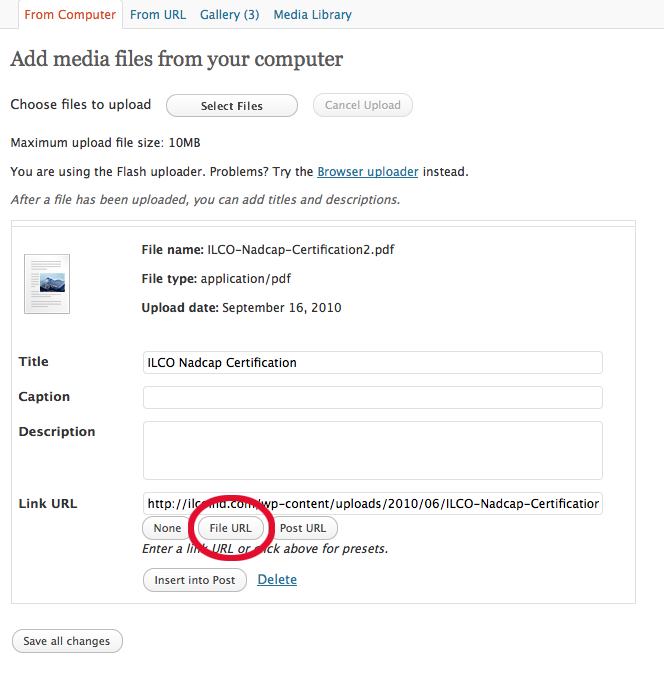
Adding a pdf link to your WordPress page gives a link. But when you hit the link online sometimes a new page opens, usually with a comments box. You then have to press the link again.
Here’s an easy way to avoid that.
You will then have a link. Hitting the link will either bring up a dialog box asking to open or download the file or will do either of those depending on your browser’s preferences.
Whenever I see an update to a program or app I get excited and want to try it out. This is not always a wise thing to do.
When I found out about the MobileMe Calendar beta update I eagerly signed up and did not think of the consequences. I was approved to try out the beta and pressed the little update button.
The result was that my entire iCal on my iMac was “wiped out” and replaced with the new MobileMe Calendar beta.
From what I understand, the MobileMe Calendar beta moves the local iCal information from your local Mac and stores it on the MobileMe “cloud” or server. So everything you enter on your iCal is stored online and no where else. All updates are sent to your other iOS devices. And when you update info on your iPad or iPhone this is sent to the “cloud” and then down to all other iOS devices. In this way everything is kept up to date and in sync.
Unfortunately iCal is no longer automatically backed up on your hard drive or Time Machine. You have to manually back up your individual calendars in order to have any sort of backup that’s not on the MobileMe server.
So when I updated to MobileMe beta and synced my Todo iPad and iPhone apps, there was no longer any iCal info on my computer and all the info was wiped clean from my Todo apps.
Of course this was very upsetting since I no longer had any of my Todo’s on my iPhone and iPad. Also at this time iCal does not sync it’s todo list feature with any other iOS device (which is still very annoying).
The good news was that I was able to “downgrade” my MobileMe calendar server back to the pre-beta mode which restored my calendar as it was before I updated to the beta. Any changes made after I updated to the beta was lost.
And when I re-synced my Todo apps on the iPhone and iPad I got all my info back! So everything is back to the way it was before I got myself into this mess.
The good folks at Appigo and “Todo” are going to look into this and hopefully come up with a workable fix. If not, I’m worried that when this new MobileMe calendar beta becomes the only option, my Todo apps may become useless.
Appigo and Todo have been working on the MobileMe update problem. They have also added Todo Online (for $19.99 per year) to sync your todos in the “cloud”. If you have an iPad, iPhone and iCal this seems like a good option to sign up for. I have done so and it works quite well. Whether my computer is on or off, near or far, all my todo items are in sync.
Appigo has detailed instructions on how to update your software to work with the new MobileMe.
Read about my latest AppigoSync/MobileMe fiasco.
Update: 4/25/11 The deadline to update your MobileMe calendar to the new CalDAV system is May 5th. Check out this helpful article, “How to Upgrade Your MobileMe Calendar Safely” from GigaOm, before updating your calendar, if you haven’t done so yet.
If you have an iPhone, iMac, iPad or any other iThingy, Dropbox is an incredibly easy way to sync a file from your computer to other computers or devices. It’s only a matter of opening an account with Dropbox online, adding an app to any of your iDevices and dropping a file or two or even more into the “box”. In an instant that file is available for viewing on all linked devices.
Dropbox allows you to view documents, spreadsheets, photos, videos and presentations. A neat feature is that you can snap a photo with your iPhone and save it to your Dropbox direct. You don’t even need a MobileMe account.
And the great thing is a Dropbox account is free and comes with 2 GB of storage space. For most people that’s quite a lot of space. If you have a lot of heavy duty files you can purchase a Pro plan up to 100GB. I am not an affiliate of Dropbox but I do find it worth looking into if you haven’t already installed it on your iStuff. Dropbox is also available for non-Apple-ites, who use Windows or Linux.
Yes, yes it is. Especially if you have your own e-mail domain name.
With IMAP your e-mail is stored on your host’s server while with POP you download your e-mail to your own computer, which is then deleted from the main server (unless you tell it not to). Therefore IMAP is better if you are getting your e-mail from several computers or devices like an iPhone or iPad.
With IMAP your e-mail is in the same condition from wherever you get it. For instance, if you read your e-mail but didn’t delete it, it will still be on the server as already read, no matter where you are viewing it. But if you are using POP and you read your e-mail on your iPhone and then later checked your mail on your iMac, it will show up again as unread. How very annoying. UpperHost has a simple explanation of IMAP vs. POP.
Switching from POP to IMAP can be quite a challenge. Here’s my tale.
I was using a local hosting company, then switched to GoDaddy. I always used POP because the local company didn’t want me storing e-mails on their server. One of the reasons I switched.
I read an article in MacWorld Magazine on The IMAP Advantage and decided to make the switch. At the time I had over 13,000 e-mails in my main e-mail account. It was suggested I save these in a folder on my computer. Sorting out 13,000 e-mails would take too much time so I tried dragging them to a generic folder and received an error message.
GoDaddy said they it would be okay to make the POP account inactive while activating the IMAP account. And this worked fine. But then something happened and a few days later all 13,000 plus e-mails became blank. They were missing. Yikes, I said to myself.
With frantic calls to Apple Support I managed to restore most of my old e-mail to my computer from my Time Machine backup. How ironic that the main reason I switched from POP to IMAP was to have a safe back up for my e-mails and in the process I lost (temporarily) all my old e-mail.
So always be sure to save your e-mail to your computer if you are switching from POP to IMAP. And have a backup plan. Hard drives do fail and e-mails do disappear.
And why I spent $300 total to do so. I’ve had the most difficult time. Turns out Intuit does not support QuickBooks Pro for the PC running in a virtual Windows environment on your Mac. Who knew? Much online research did not point this out to me.
I was using an early 2009 iMac 24″, the latest VMfusion 3, Windows 7 Pro and QuickBooks Pro 2010. All new, all up to date, all SLOW. And a frequent problem was that often QuickBooks refused to email or print invoices. It all has something to do with QuickBooks PDF Converter 2.0. Windows seems to insist that this is the default printer when operating in QuickBooks. Deleting it or switching default printers does not help. There are a few fixes that don’t necessarily work. Sometimes downloading and using “Cute PDF Converter” works. Sometimes it doesn’t.
I had the same problem using QuickBooks Pro 2009 in Windows XP. Which is why I upgraded to 2010 and Windows 7. That was an expensive lesson.
Out of frustration I tried and have since purchased QuickBooks 2010 for Mac. And what do you know. It works. Every time. It’s too bad I can’t return my copy of QuickBooks Pro to Staples as I’ve already opened and used it. And Intuit won’t take it back since I bought it from Staples. They did offer a 20% discount for the Mac version but, again, Staples was cheaper.
So the lesson of this story is if you run a Mac, use QuickBooks for Mac. It’s a much nicer and more reliable experience. Switching over my merchant account was also easy. Intuit was very helpful with this. Whether it works or not remains to be seen. I’m waiting for my next charge customer. Need a website, logo or business card design? Have any questions on my QuickBooks experience? Just call 310-791-5803.
Talk about complicated. Luckily I’m only running QuickBooks Pro 2010 on my Windows OS.
Through much trial and error and online research I will tell you what I discovered in a few easy steps.
1. Install VMware Fusion 3 on your Mac OS Snow Leopard. That’s fairly easy.
2. Set up a new Virtual Machine. If you have Windows XP in one Virtual Machine you can leave it there. You don’t have to back up your files or wipe your “virtual disk” clean. I’m not sure if this is approved by Windows but it works.
3. Create a new Virtual Machine and install a clean (new) version of Windows 7, not an “Upgrade”. When asked for your key, do not use your upgrade key because it won’t be accepted. Leave it blank.
4. When Windows 7 is up and running, put the Windows 7 disk back in and this time click “Upgrade”. It will see the existing Windows OS and will accept the upgrade key.
5. When installed you have to get your system activated within 30 days. And then you’re done. It worked for me and I hope it works for you.
You can get greater details by doing a little searching online. It is assumed that you have a legal version of Windows XP on your system or in your possession.