
One of the many great things about your iPhone and iPad is that you can easily load up a pdf file for later reading. Then, whenever you have a spare moment, either while waiting on line at a supermarket or bank, waiting in an airport or doctor’s office, or just waiting for a TV commercial to end (assuming you did not DVR it to speed past commercials), you can click on your iThing and read your latest pdf file or e-book.
1. Open iTunes.
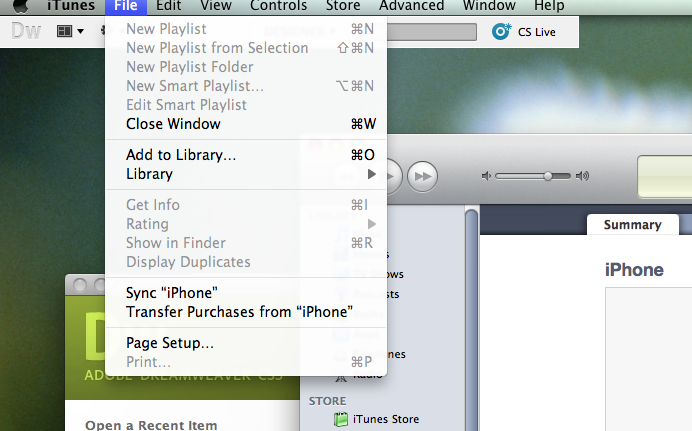
2. On the top menu click “File”. On the drop down menu click “Add to Library…”
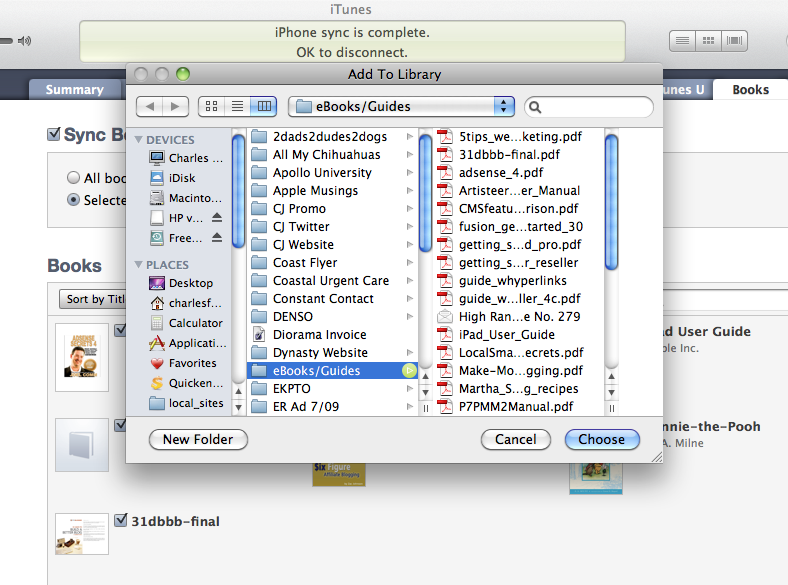
3. Navigate to your e-book or pdf file and choose it.
4. In iTunes click on your iPhone or iPad in the side menu.
5. Choose the Books tab and you will see the file. Make sure it’s checked.
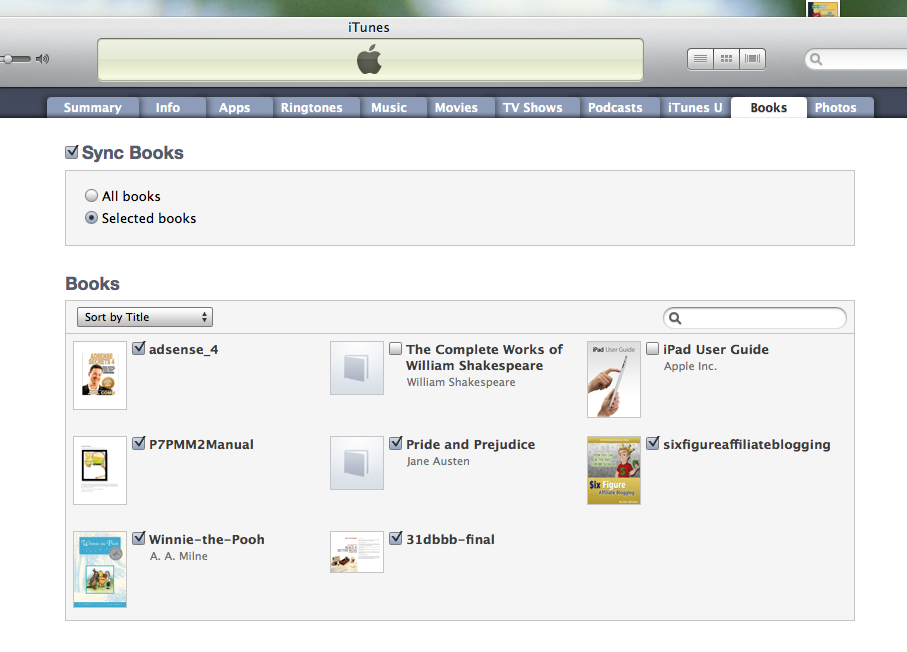
6. Sync your iPhone or iPad and your pdf file will appear in iBooks under the pdf tab.
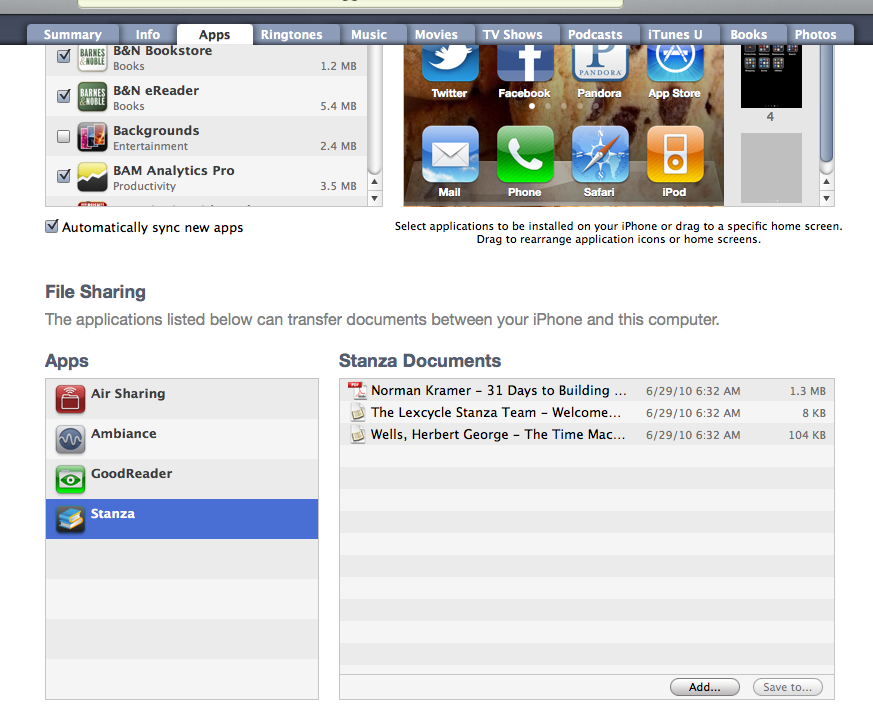
See, it’s simple. There are other ways to get files onto your iPhone or iPad, including Dropbox, Air Sharing, Stanza and GoodReader apps but I’ll leave that for another post.



Leave a Reply